How to Screen Mirror with an iOS Device
Section outline
-
-
- Make sure the iPad is connected to "Saanich Device" WiFi - AirServer only works on this WiFi
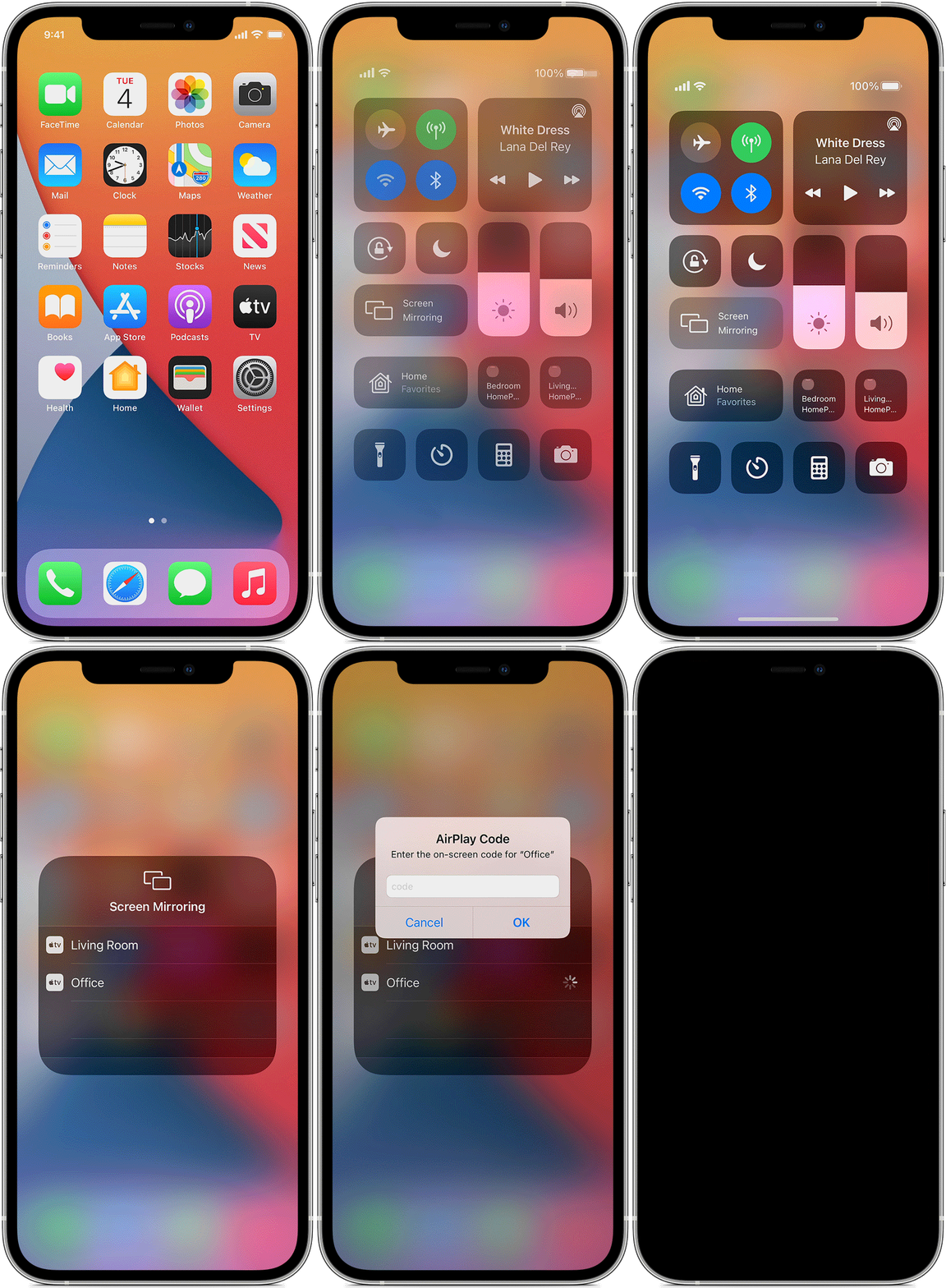
- Open Control Center on your iOS device
- On iPad iOS version 13 or higher: Swipe down from the upper-right corner of the screen
- Tap the Screen Mirroring button

- Select your AirServer destination from the list of devices
- If a passcode is required, enter the passcode on your iOS device
To stop mirroring your iOS device, open Control Center, tap Screen Mirroring, then tap Stop Mirroring. Or press the X button on AirServer window.
-